


A computer that refuses to turn on can be alarming, especially when you need it for work, study, or important files. The good news is that a completely unresponsive computer does not always mean the motherboard or another expensive component has failed. Power connections, chargers, batteries, displays, and recently connected devices can all cause similar symptoms.
The first step is determining exactly what “won’t turn on” means in your situation. A computer with no lights or fan noise has a different problem from one that powers up but shows a black screen. Paying attention to lights, sounds, error messages, and fan activity can help narrow down the cause quickly.
You can solve many common startup problems with basic checks before taking the machine to a repair technician. Start with the safest and simplest troubleshooting steps, then move toward internal hardware only if you have the appropriate experience. This guide explains how to fix a computer that won’t turn on while minimizing unnecessary risk.
Check the Power Source First
Start by confirming that the computer is actually receiving electricity. For a desktop, make sure the power cable is firmly connected to both the computer and the wall outlet or power strip. If you use a surge protector, check that its power switch is turned on and that other devices connected to it are working.
Test the wall outlet with another device, such as a lamp or phone charger, to confirm that electricity is available. If the computer is connected through an extension cord or power strip, temporarily plug it directly into a known working wall socket. A faulty power strip can make a healthy computer appear completely dead.
Desktop power supplies often have a small switch on the back near the power cable. Make sure this switch is set to the on position, usually marked with “I” rather than “O.” If the computer still shows no lights, sounds, or fan movement, continue troubleshooting the power cable and internal power components.
Check the Laptop Charger and Battery
If a laptop will not turn on, inspect its charger carefully. Make sure the adapter is connected securely to the wall and the laptop charging port. Look for bent connectors, damaged cables, unusual heat, or a loose charging port that could prevent electrical power from reaching the battery and internal components.
Many laptops have a charging indicator light that turns on when the adapter is connected. If the indicator remains dark, try another compatible outlet and disconnect accessories before testing again. When possible, using a manufacturer-approved compatible charger can help determine whether the original adapter has failed.
For laptops with a removable battery, shut everything down, unplug the charger, and remove the battery. Connect the charger without the battery installed and try turning the laptop on. If it starts normally, the battery may be faulty, although professional testing may still be useful before purchasing a replacement.
Perform a Basic Power Reset
Residual electrical charge can occasionally interfere with startup, particularly after a freeze, battery issue, or unexpected shutdown. A basic power reset can discharge stored electricity and reset certain hardware states. Begin by disconnecting the computer from its power adapter and removing the battery if your laptop has an easily removable one.
With external power disconnected, press and hold the power button for roughly 15 to 30 seconds. Reconnect the charger or desktop power cable afterward and attempt to start the computer normally. This simple process does not erase files or reinstall the operating system, so it is generally a low-risk troubleshooting step.
For laptops with built-in batteries, follow the manufacturer’s recommended reset procedure when available because designs vary. Some models have a dedicated reset pinhole or specific keyboard combination. Avoid opening a sealed laptop merely to disconnect the battery unless you have the skills and appropriate service information.
Disconnect External Devices and Accessories
USB devices and external hardware can sometimes interfere with the startup process. Disconnect flash drives, external hard drives, printers, memory card readers, docking stations, controllers, and unnecessary USB accessories. Leave only the essential power connection, display, keyboard, and mouse when testing a desktop computer.
A damaged peripheral or faulty USB device may create an electrical problem or prevent the computer from completing startup. After disconnecting everything unnecessary, press the power button again and observe whether the behavior changes. If the computer starts, reconnect accessories individually until you identify the device associated with the problem.
You can use the same approach after the computer is functioning but other connections create problems. For example, if startup succeeds but networking later becomes an issue, troubleshooting your Wi-Fi connection separately can prevent unrelated problems from becoming mixed together. Keeping troubleshooting focused makes the actual cause easier to identify.
Determine Whether the Computer Is Actually On
Sometimes a computer is running even though the screen remains completely black. Listen for cooling fans, hard drive activity, startup sounds, or notification tones, and look for keyboard or power indicator lights. These signs suggest that the issue may involve the monitor, display cable, graphics hardware, or screen rather than the computer’s power system.
For a desktop, verify that the monitor is switched on and connected to electricity. Check the HDMI, DisplayPort, or other video cable at both ends and confirm that the monitor is using the correct input source. If another compatible cable or monitor is available, testing it can help isolate the display problem.
With a laptop, increase the screen brightness and look closely for an extremely dim image. Connecting an external monitor can also reveal whether the computer is booting while the built-in display has failed. If an external screen works normally, the laptop may have a panel, cable, backlight, or related display hardware problem.
Pay Attention to Beeps and Diagnostic Lights
Many computers provide diagnostic information when hardware prevents startup. The motherboard may produce beep patterns, flashing LED sequences, or colored indicator lights that correspond to particular hardware problems. These signals can point toward memory, graphics, processor, power, or motherboard issues depending on the manufacturer.
Record the exact pattern before repeatedly restarting the computer. For example, note how many beeps occur, whether they are long or short, and which lights flash. Manufacturer documentation can then help interpret the code because the meaning is not standardized across every laptop, desktop, or motherboard brand.
A diagnostic code is more useful than randomly replacing components. If the machine repeatedly displays the same pattern, focus troubleshooting on the indicated hardware area. People who are uncomfortable opening a computer can also provide the code to a technician, which may help shorten the diagnosis and avoid unnecessary replacement parts.
Check the RAM if the Computer Powers On but Will Not Boot
Loose or faulty memory can cause a computer to power on without successfully completing startup. You may see lights and hear fans while receiving no display or normal boot sequence. This situation is different from a machine receiving absolutely no electrical power, so confirm that the system is showing signs of life first.
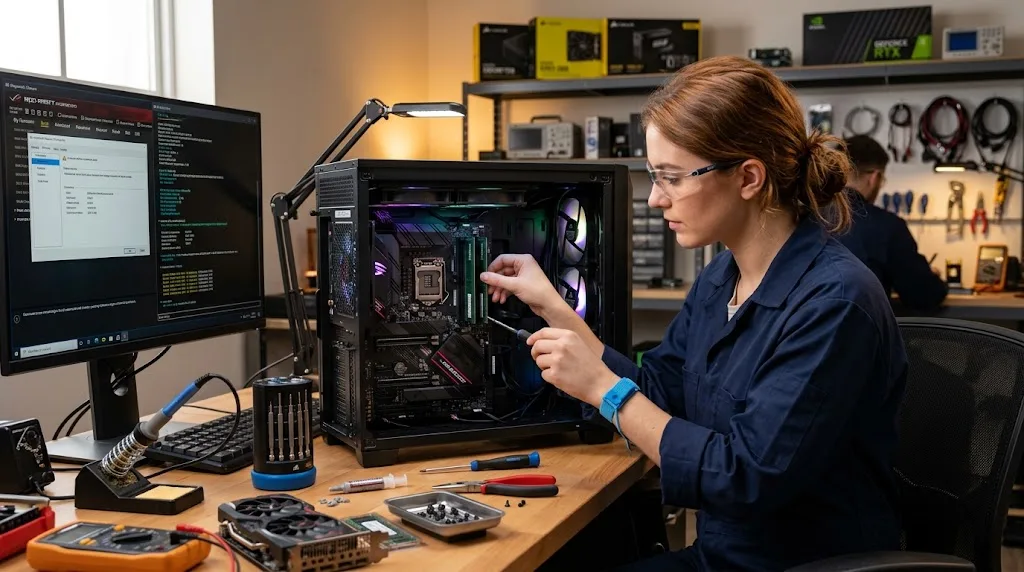
If you are comfortable working inside a desktop, shut it down, disconnect power, and follow proper antistatic precautions before touching components. RAM modules can sometimes be carefully removed and reseated in their slots. Systems with multiple memory modules may also be tested one module at a time to help identify a defective stick.
Laptop memory access varies significantly between models, and many modern laptops use soldered memory that cannot be removed. Do not force open a device that is not designed for easy servicing. If reseating RAM feels unfamiliar or the warranty may be affected, professional diagnosis is safer than experimenting with internal components.
Inspect the Desktop Power Supply
A desktop power supply converts electricity from the wall into the voltages required by the computer’s internal hardware. When it fails, the machine may show no response at all or briefly start before shutting down. Unusual electrical smells, clicking, or repeated power cycling can also suggest a power-related hardware problem.
Check external power connections first because a dead system does not automatically mean the power supply has failed. You can also confirm that the rear power switch is correctly positioned and that the power cable itself is working. Internal power supply testing requires more care and should not involve opening the power supply enclosure itself.
Power supplies can contain dangerous electrical energy even after being unplugged, so the sealed unit should not be disassembled by an inexperienced user. A technician can test whether the power supply is delivering the correct output and replace it if necessary. This is usually safer than attempting internal electrical repairs without suitable training.
Consider Whether a Recent Hardware Change Caused the Problem
If the computer stopped turning on immediately after installing new hardware, the recent change deserves attention. New RAM, graphics cards, storage drives, power supplies, or other components can create startup problems when incorrectly installed or incompatible. A loose cable introduced during an upgrade can also prevent normal power or boot behavior.
Turn the machine off and disconnect power before inspecting recently changed components. Verify that power cables, memory, graphics cards, and storage connections are seated correctly according to the system or component documentation. Never reconnect internal parts while the computer remains powered, and avoid touching exposed electrical contacts unnecessarily.
If possible, returning the system to its previous working configuration can be useful. Remove the newly installed component and test whether the computer starts again. If it does, the issue may involve compatibility, installation, insufficient power capacity, a defective component, or settings that need to be adjusted before the upgrade can work correctly.
Know When Software Is Actually the Problem
A computer that shows a manufacturer logo, BIOS screen, or operating system loading message has successfully powered on. At that point, the problem is no longer simply that the computer will not turn on. Windows corruption, failed updates, damaged boot files, or storage problems may instead be preventing the system from completing startup.
Watch carefully for messages such as automatic repair, no bootable device, operating system not found, or repeated restarts. These symptoms require different troubleshooting from a completely dead computer. Startup repair tools, recovery environments, boot settings, and storage diagnostics may become relevant after you confirm that the hardware is receiving power.
Avoid repeatedly forcing shutdowns during operating system updates unless the computer is clearly frozen for an unusually long period. Interrupting disk activity can sometimes create additional problems. If important files are stored on the machine, consider preserving or recovering the data before performing resets, reinstalls, or storage operations that could erase information.
Watch for Signs That Professional Repair Is Needed
Professional help is appropriate when troubleshooting points toward the motherboard, internal power circuits, soldered components, or physical damage. Liquid spills, electrical burning smells, swollen batteries, and damaged charging ports should be handled cautiously. Continuing to power on a damaged system can sometimes worsen the problem or create a safety risk.
A laptop battery that appears swollen should not be pressed, punctured, or repeatedly charged. Stop using the device and seek appropriate professional servicing or battery disposal guidance. Similarly, a desktop that produces sparks, smoke, or strong burning odors should be unplugged immediately rather than repeatedly tested.
Repair may also make sense when the computer contains valuable files that have not been backed up. Randomly replacing components or reinstalling the operating system can complicate data recovery in some situations. A qualified technician can diagnose the startup failure while helping you determine whether repairing the machine, recovering data, or replacing the computer is the better option.
Conclusion
When a computer will not turn on, start with simple checks before assuming that expensive hardware has failed. Confirm the wall outlet, cable, charger, battery, and power switch, then disconnect unnecessary external devices. A basic power reset can also resolve some temporary electrical or hardware states without affecting your personal files.
Next, determine whether the computer is truly receiving no power or is running with a blank display. Lights, fans, beep codes, diagnostic LEDs, and startup messages can help narrow down the cause. If you are comfortable working with computer hardware, checking accessible RAM and recently installed components may provide additional clues.
Stop troubleshooting when you encounter swollen batteries, burning smells, liquid damage, electrical hazards, or internal repairs beyond your experience. Professional diagnosis is often the safer choice for motherboard and power-related failures. A careful step-by-step approach can help you avoid unnecessary repairs while identifying the real reason your computer refuses to start.
Frequently Asked Questions
Why is my computer completely dead when I press the power button?
A completely unresponsive computer may have a faulty outlet, power cable, charger, battery, power supply, or motherboard problem. Start by confirming the external power source before investigating internal hardware.
Why does my computer turn on but show a black screen?
The computer may be running while the monitor, video cable, graphics hardware, or laptop display has a problem. Check display power, connections, input selection, brightness, and another monitor when available.
Can a bad battery stop a laptop from turning on?
Yes, a faulty battery can contribute to startup problems. On laptops with removable batteries, testing the machine with the battery removed and a compatible charger connected may help identify the issue.
Can faulty RAM prevent a computer from starting?
Yes. Loose or defective RAM can allow fans and lights to activate while preventing normal booting or display output. Reseating or testing memory modules may help when performed safely.
When should I take a computer that won’t start to a technician?
Seek professional repair for burning smells, swollen batteries, liquid damage, motherboard problems, damaged power ports, or persistent failures after basic troubleshooting. Professional help is also sensible when important data is at risk.