

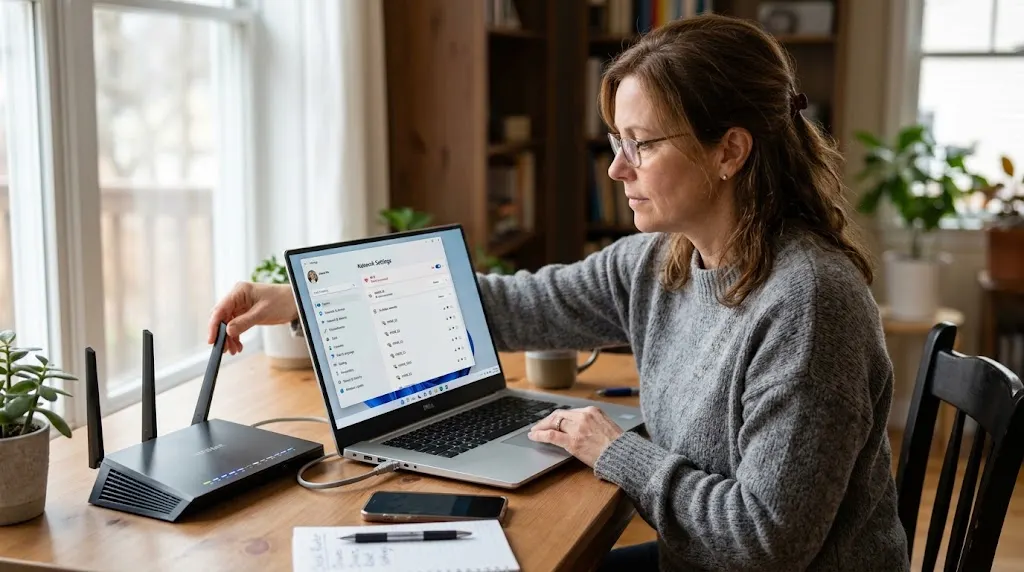

A laptop that refuses to connect to Wi-Fi can interrupt work, streaming, online classes, gaming, and everyday browsing. The problem may come from a weak signal, incorrect password, outdated network driver, router issue, or a temporary Windows setting. In many cases, the fix is simple once you identify whether the problem is coming from the laptop, router, or network itself.
Wi-Fi connection problems can appear in different ways. Your laptop may show the network but fail to connect, connect without internet access, disconnect repeatedly, or fail to detect any wireless networks at all. Each symptom points toward a slightly different cause, so troubleshooting works best when you move through the possible fixes in a logical order.
Before changing advanced settings, start with the simplest steps and confirm whether other devices can connect to the same network. This helps separate a laptop-specific problem from a wider internet or router issue. The following methods explain how to fix Wi-Fi not connecting on a laptop using practical steps that are suitable for most users.
Check Whether Wi-Fi Is Turned On
The first thing to check is whether Wi-Fi is actually enabled on the laptop. It is surprisingly easy to switch wireless connectivity off accidentally through a keyboard shortcut, airplane mode, or the network settings menu. Open your Wi-Fi settings and confirm that wireless networking is turned on before trying more advanced troubleshooting.
Many laptops also have a function key that controls wireless connectivity. Depending on the model, the key may show a Wi-Fi, antenna, or airplane icon. Pressing this key accidentally can disable the wireless adapter, so check whether your laptop uses a dedicated keyboard shortcut for Wi-Fi.
You should also make sure airplane mode is turned off. Airplane mode disables wireless connections and can prevent your laptop from seeing nearby Wi-Fi networks. If Wi-Fi becomes available again after turning airplane mode off, there is no need to continue with more complicated fixes.
Restart Your Laptop and Router
Restarting both the laptop and router can fix temporary connectivity problems caused by software glitches, memory issues, or stuck network processes. Start by restarting the laptop normally, then check whether it reconnects to Wi-Fi. A simple reboot can refresh network services and clear temporary errors.
If the problem continues, restart the router or modem-router unit. Unplug its power cable, wait about 30 seconds, and reconnect it. Allow a few minutes for the router to fully restart before testing the connection again on the laptop.
This step is especially useful if several devices are having connection problems at the same time. If other phones, tablets, or computers also cannot connect, the issue may be with the router or internet service rather than the laptop. Restarting networking equipment is often the fastest way to rule out a temporary router problem.
Forget and Reconnect to the Wi-Fi Network
Saved Wi-Fi profiles can sometimes become corrupted or store outdated network information. Forgetting the network removes the saved profile and allows the laptop to create a fresh connection. This can help when the laptop sees the Wi-Fi network but repeatedly fails during the connection process.
Open your Wi-Fi settings, find the saved network, and choose the option to forget it. After removing the profile, reconnect by selecting the network again and entering the correct Wi-Fi password. Be careful with uppercase letters, numbers, and special characters when entering the password.
If the router password was recently changed, forgetting the old network is especially important. Your laptop may still be trying to use the previous credentials. Reconnecting from scratch replaces outdated settings and can resolve authentication errors without requiring deeper system changes.
Move Closer to the Router
A weak Wi-Fi signal can make it difficult for a laptop to connect reliably. Walls, furniture, appliances, and long distances between the laptop and router can weaken wireless coverage. Try moving closer to the router and test whether the connection becomes more stable.
If the laptop connects near the router but fails in another room, the issue may be signal strength rather than the laptop itself. Thick concrete walls, metal structures, and interference from other wireless devices can reduce performance. In larger homes or offices, additional access points or mesh Wi-Fi may eventually be needed.
You can also reposition the router in a more central and open location. Avoid placing it inside cabinets, behind large objects, or near devices that may create interference. Better router placement can improve coverage for the laptop and other wireless devices throughout the space.
Check the Wi-Fi Password
An incorrect password is another common reason a laptop cannot connect to Wi-Fi. Even if the password looks correct, a typing mistake or recently changed router password can prevent authentication. Re-enter the password carefully and confirm that Caps Lock is not affecting the characters.
If another device is already connected to the same network, compare the saved password or confirm the current credentials through the router settings. Do not assume the password has remained unchanged, especially in shared homes, offices, or public environments where network settings may be updated.
If you manage the router and cannot remember the password, you may need to check the router administration interface or reset the wireless credentials. Avoid repeatedly guessing because some devices may temporarily delay further connection attempts after several failed authentication attempts.
Run the Built-In Network Troubleshooter
Windows includes built-in troubleshooting tools that can identify common network configuration problems automatically. Open the system settings, navigate to the network troubleshooting section, and run the recommended network or internet diagnostic tool. It may reset certain services or suggest a specific fix.
The troubleshooter can detect problems such as a disabled adapter, incorrect IP configuration, DNS issues, or network services that are not responding. It does not solve every Wi-Fi problem, but it can provide useful information before you start changing settings manually.
After the troubleshooter finishes, follow any recommendations it provides and restart the laptop if requested. If no issue is found, continue with the next steps. The absence of a detected problem does not necessarily mean the wireless adapter or router is working correctly.
Update the Wi-Fi Driver
An outdated, corrupted, or incompatible wireless driver can prevent a laptop from connecting properly. Drivers allow the operating system to communicate with the Wi-Fi hardware, so problems with this software can cause missing networks, random disconnections, or complete connection failure.
Open Device Manager and locate the wireless network adapter under the network adapters section. Check for driver updates through Windows or the laptop manufacturer’s support page when possible. Manufacturer-provided drivers can sometimes work better than generic versions supplied automatically by the operating system.
If the laptop is also generally performing poorly, network issues may feel worse because background processes and outdated software can slow the system. In that situation, this guide on how to fix a slow laptop can help you address broader performance problems alongside the Wi-Fi issue.
Reinstall the Wireless Network Adapter
If updating the Wi-Fi driver does not help, reinstalling the wireless adapter can refresh its configuration. Open Device Manager, right-click the wireless network adapter, and choose the option to uninstall the device. Then restart the laptop so Windows can detect the hardware again.
In many cases, Windows automatically reinstalls the correct basic driver after the restart. This can fix problems caused by a damaged driver installation or an incorrect configuration. Make sure you know which network adapter is the wireless one before uninstalling anything.
If Windows does not reinstall the adapter properly, you may need to download the driver from the laptop manufacturer using another device or a wired connection. Save the installer to a USB drive if necessary, then install it manually on the affected laptop.
Reset Network Settings
A network reset can help when Wi-Fi problems persist after simpler fixes. This option removes and reinstalls network adapters and resets several networking components to their default configuration. It can resolve deeper problems involving TCP/IP settings, adapters, and saved network information.
Before performing a network reset, remember that saved Wi-Fi networks and some custom network settings may be removed. You may need to reconnect to your wireless network and re-enter passwords afterward. VPN software or specialized network configurations may also require setup again.
Use this option after trying basic troubleshooting rather than as the first step. Once the reset is complete, restart the laptop and reconnect to the Wi-Fi network. If the connection works afterward, the problem was likely related to a corrupted or incorrect network configuration.
Check IP and DNS Settings
Incorrect IP or DNS settings can make a laptop appear connected while preventing normal internet access. In most home networks, the laptop should obtain its IP address and DNS information automatically from the router. Manual settings can sometimes create conflicts if they are entered incorrectly.
Open the network adapter properties and check whether IPv4 settings are configured to obtain an IP address automatically. You can also allow DNS settings to be assigned automatically unless you intentionally use a specific DNS provider. Incorrect static addresses are a common cause of connection problems after network changes.
If the laptop has a valid Wi-Fi connection but websites still do not load, DNS may be part of the issue. Switching temporarily to automatic DNS settings can help determine whether a custom configuration is causing the problem. Restart the browser or laptop after making changes.
Check Whether Other Devices Can Connect
Testing another device on the same Wi-Fi network is one of the fastest ways to locate the source of the problem. If phones and other laptops connect normally, the issue is probably specific to the affected laptop. If nothing connects, the router or internet connection may be responsible.
When several devices lose internet access together, check the router lights and internet service status. A router can broadcast Wi-Fi even when the internet connection from the provider is unavailable. This can create a situation where devices show as connected but cannot reach websites.
If only one laptop has the issue, focus on its drivers, saved network profile, adapter settings, and operating system configuration. Separating device-specific problems from network-wide problems saves time and prevents unnecessary changes to a router that is already working correctly.
Check Router Compatibility and Frequency Bands
Modern routers often support both 2.4 GHz and 5 GHz Wi-Fi bands. Some older laptops may not support certain frequencies or newer wireless standards. If the laptop cannot see one network but other devices can, compatibility may be part of the problem.
The 2.4 GHz band generally offers longer range, while 5 GHz can provide higher speeds over shorter distances. If your router uses separate network names for each band, try connecting the laptop to the 2.4 GHz network first. Older wireless adapters are more likely to support it.
Router settings can also be configured to use specific channels, security types, or wireless modes that some devices do not handle well. If the issue started after changing router settings, restoring a more compatible configuration may help. Avoid changing advanced options randomly without recording the original values.
Scan for Software Conflicts
VPN applications, third-party firewalls, security software, and network optimization tools can sometimes interfere with Wi-Fi connectivity. If the problem began after installing or updating one of these programs, temporarily disabling it may help determine whether it is causing the issue.
Do not leave essential security protections disabled permanently. The purpose of a temporary test is only to identify whether the software is affecting the network connection. If Wi-Fi begins working again, update or reconfigure the conflicting program before using it normally.
Recent operating system updates can also occasionally introduce compatibility problems with older drivers. If the Wi-Fi issue started immediately after a major update, check for additional system updates or newer wireless drivers. Manufacturers often release compatibility fixes when widespread problems become known.
When the Wi-Fi Adapter May Be Faulty
If the laptop cannot detect any Wi-Fi networks even after reinstalling drivers and resetting network settings, the wireless adapter itself may be damaged. Hardware problems are less common than configuration issues, but they can occur after physical damage, overheating, or long-term use.
A useful test is to connect through Ethernet or use a temporary USB Wi-Fi adapter. If internet access works normally through these alternatives, the built-in wireless adapter becomes a more likely suspect. A technician can help confirm whether the internal hardware needs repair or replacement.
Do not open the laptop unless you are comfortable working with internal components and understand the warranty implications. Many wireless cards are replaceable, but some devices require more specialized repair. Professional diagnosis is usually safer when hardware failure is suspected.
Conclusion
When Wi-Fi is not connecting on a laptop, start with simple troubleshooting steps before changing advanced settings. Confirm that Wi-Fi is enabled, restart the laptop and router, forget and reconnect to the network, and check the password and signal strength. These basic fixes resolve many common connection problems.
If the issue continues, move on to driver updates, adapter reinstallation, network resets, and IP or DNS settings. Testing other devices on the same network can also help determine whether the problem belongs to the laptop or the router. Working through the possibilities in order makes troubleshooting faster and safer.
Persistent problems may point to software conflicts, router compatibility issues, or a faulty wireless adapter. If the laptop still cannot detect or connect to networks after software troubleshooting, professional hardware testing may be appropriate. Identifying the actual cause is more effective than repeatedly changing unrelated settings.
FAQs
Why is my laptop not connecting to Wi-Fi but my phone is?
If your phone connects normally, the problem is probably specific to the laptop. Common causes include an outdated Wi-Fi driver, corrupted network profile, disabled adapter, or incorrect network settings.
Why does my laptop say connected but have no internet?
The laptop may be connected to the router while the router itself has no internet access. DNS problems, incorrect IP settings, or an internet service outage can also cause this issue.
Should I reset my network settings?
A network reset can help when simpler fixes fail, but it removes saved network information and resets adapters. Use it after checking Wi-Fi settings, restarting devices, and updating the wireless driver.
Can an outdated Wi-Fi driver stop a laptop from connecting?
Yes. An outdated or corrupted wireless driver can prevent networks from appearing, cause repeated disconnections, or stop the laptop from connecting. Updating or reinstalling the driver may resolve the problem.
How do I know if my laptop Wi-Fi adapter is broken?
A faulty adapter becomes more likely if no networks appear after driver reinstallation and network resets, while Ethernet or an external USB Wi-Fi adapter works normally. Hardware testing can confirm the problem.