

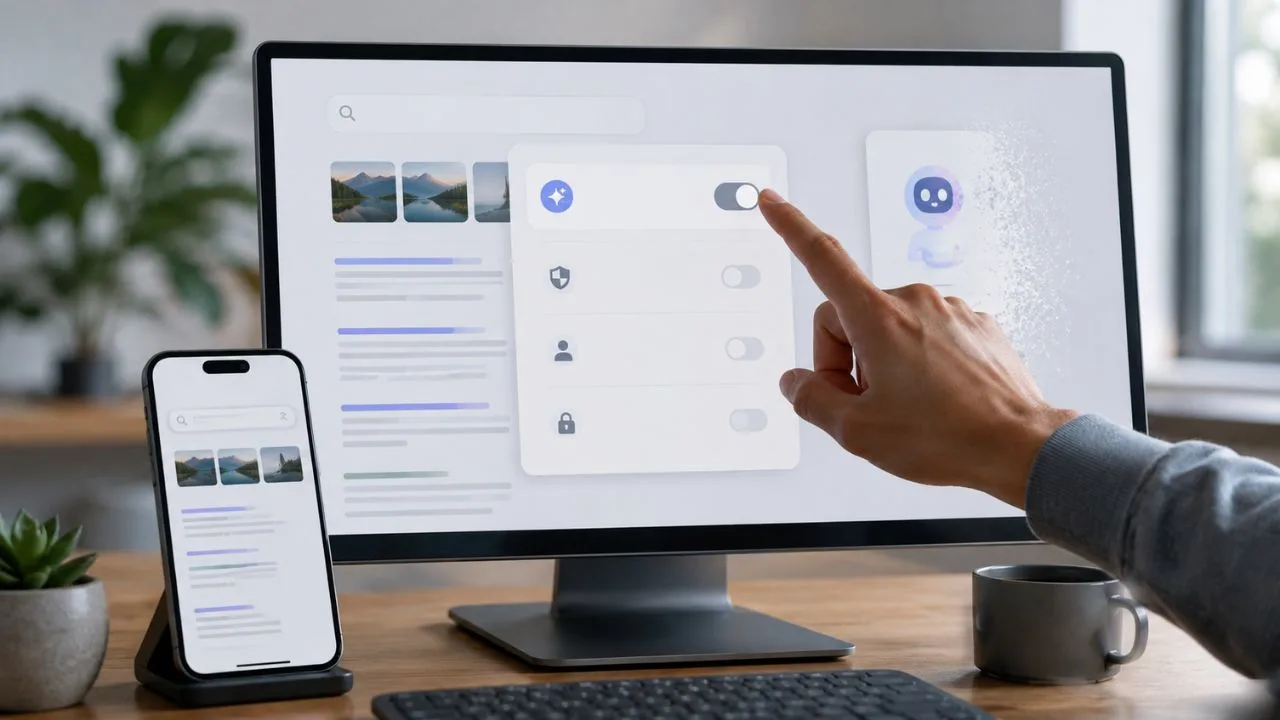

How to Disable AI on Google and Take Back Control
Google has added artificial intelligence to Search, Chrome, Android, Gmail, Docs and several other products. These tools can create summaries, answer questions and suggest text, but they can also make a familiar Google experience feel crowded. This guide explains how to disable AI on Google without accidentally switching off unrelated features you still use.
There is no single master button that removes every Google AI feature. AI Overviews, AI Mode, Gemini, Chrome AI tools and Workspace smart features are controlled in different places. You therefore need to identify the exact feature appearing on your screen, open the relevant settings and disable it separately on each account or device.
Some features can be turned off completely, while others only have practical workarounds. Google currently says AI Overviews are part of the core Search experience and cannot be disabled with a permanent account setting. However, the Web filter can show text-based links without features such as AI Overviews.
The steps below cover Google Search, Search Labs, Chrome, Gemini on Android, Gemini activity, connected apps and Gmail. Menu names may vary slightly because Google releases features gradually across regions and account types. Follow only the sections that match your problem, then test the change using the same Google account where the feature appeared.
Can You Disable Google AI Completely?
You cannot currently remove every form of artificial intelligence from the Google ecosystem with one universal control. Google Search, Chrome, Gemini and Workspace are separate products with separate settings. Turning off Gemini activity will not remove AI Overviews, and disabling a Chrome feature will not automatically change what appears in the Google mobile app.
The first step is to identify the visible feature instead of treating every AI tool as the same service. A generated summary above search results is usually an AI Overview, while a conversational search page is AI Mode. A side panel in Gmail or Docs is generally Gemini for Workspace, and a phone assistant may be the Gemini mobile app.
Once you know the feature, decide whether you want to hide it, stop it from opening or reduce the data it uses. These actions are different. Hiding an AI shortcut changes the interface, disabling a feature stops that tool from running, and turning off activity mainly changes how future interactions are stored in your Google Account.
This distinction prevents unnecessary changes. For example, disabling all Workspace smart features may also remove useful options such as Smart Compose, summary cards or automatic personalisation. Start with the narrowest setting that solves the problem, confirm the result and only expand the changes when the unwanted AI feature continues to appear.
How to Disable AI Overviews on Google Search
Many users asking how to disable AI on Google are mainly trying to remove AI Overviews from search results. These summaries may appear above regular links and combine information from several sources. Google currently states that AI Overviews are a Search feature and cannot be switched off completely through a permanent setting.
The safest built-in workaround is the Web filter. Run a normal Google search, look below the search box and select Web. When the option is hidden, choose More or scroll through the available filters. Google says the Web filter displays text-based links without features such as AI Overviews, providing a more traditional results page.
On Android or iPhone, open the Google app or your browser and submit the search first. Move across the filter row until Web appears, then tap it. The order of filters can change by query and device, so Web may be immediately visible for one search but placed under More for another search.
The Web filter is not a permanent opt-out, which means you may need to select it again for later searches. Browser extensions can hide AI Overviews more consistently, but they are third-party tools. Review their permissions, privacy policy and recent user feedback before allowing an extension to read or modify Google Search pages.
How to Turn Off AI Mode in Google Search
AI Mode is different from an AI Overview. It opens a dedicated conversational search experience where you can ask longer questions and continue with follow-up prompts. When you enabled it through Search Labs, you can usually disable AI Mode in Google Search by returning to the same experiment controls used during activation.
On a computer, open Google while signed in to the correct account. Select the Search Labs beaker icon, choose Manage and find AI Mode. Turn the toggle off, refresh the page and open a new search tab. Google’s current instructions list this route for switching the AI Mode experiment on or off.
On a phone or tablet, open the Google app or Google Search in a supported browser. Confirm that Incognito mode is off and that the correct account is active. Open Search Labs, choose Manage and turn off AI Mode. Restart the app when the interface does not update immediately after the setting changes.
Disabling the Search Labs experiment may not remove every AI Mode button from Chrome or other Google surfaces. It also does not remove AI Overviews because those features are managed separately. When a shortcut remains visible, review Chrome’s AI settings and search-engine shortcuts in addition to the Search Labs control.
How to Remove Google AI From Chrome
Chrome now includes several AI tools, so removing Google AI from Chrome requires checking more than one setting. Open Chrome on your computer, select the three-dot menu and choose Settings. Look for AI innovations, although the exact label and available controls can differ according to your browser version, device eligibility and account rollout.
To stop AI-powered browsing-history answers, open Settings, choose AI innovations and select History search, powered by AI. Turn the feature off. Google confirms that this control can be disabled at any time, preventing Chrome from using its AI history-search experience when you search through previously visited pages.
Chrome can also use generative AI models stored on the device. Open Settings, choose System and locate On-device AI, then switch it off when that option is available. Google provides a dedicated control for managing on-device generative AI models, but disabling it may affect browser features that depend on those local models.
Review the remaining AI innovations individually, including Gemini in Chrome or writing assistance when they appear. Turning off one tool does not necessarily deactivate the others. After changing the settings, close every Chrome window and reopen the browser, then test the address bar, new-tab page and history page to confirm the unwanted feature is gone.
How to Turn Off Gemini on Android
To turn off Gemini on Android, first decide whether you want to keep the app but stop automatic activation, switch back to Google Assistant or remove Gemini entirely. These options produce different results. Keeping the app lets you open it manually, while changing the default assistant stops Gemini from responding to assistant gestures or voice commands.
To switch assistants, open the Gemini mobile app, select your profile picture or initial and choose Switch to Google Assistant. Select Google Assistant and confirm the switch. Google explains that Google Assistant will then respond when you say “Hey Google” or activate the phone assistant using the power button or another supported gesture.
You can also keep Gemini installed while stopping common triggers. Open Gemini, go to Settings and turn off Hey Google under the hands-free controls. Review Gemini on lock screen and disable it if you do not want the assistant available before unlocking. Device manufacturers may place power-button and gesture controls in different Android menus.
When your phone allows removal, uninstall Gemini like another downloaded application. On devices where it is integrated or cannot be uninstalled, open Android Settings, choose Apps, select Gemini and look for Disable or Uninstall updates. The available action depends on the device model, Android version, manufacturer and how Gemini was originally installed.
How to Disable Gemini Activity
Disabling the Gemini assistant does not automatically delete its saved conversations. To disable Gemini activity on a computer, open Gemini, select Settings and help, and choose Activity. Near the top, select the current activity status, then choose Turn off or Turn off and delete activity, depending on whether you want existing history removed.
On Android, open the Gemini app, select your profile picture or initial and choose Gemini Apps Activity. Tap the activity status and select Turn off or Turn off and delete activity. Review the confirmation carefully because deleting past activity and preventing future account storage are separate actions with different effects on your history.
Gemini can connect with Gmail, Drive, Calendar, YouTube and other supported services. Open Gemini settings, choose Connected Apps and turn off any service you do not want Gemini to use. Google’s help guidance states that individual connected apps can be disconnected with their switches, although available integrations vary by device and account.
Remember that disconnecting an app does not necessarily erase information already saved within Gemini activity. Delete relevant Gemini conversations separately when privacy is your main concern. After changing both settings, start a new Gemini chat and check the Connected Apps page again to confirm the unwanted service remains disabled.
How to Turn Off AI in Gmail
To turn off AI in Gmail, open Gmail on a computer and select Settings, followed by See all settings. Under the General tab, find Google Workspace smart features and open the management controls. Turn off the relevant smart-feature setting, save the change and reload Gmail before checking whether Gemini panels or AI summaries remain.
Google separates smart features used within Workspace from smart features used in other Google products. This lets you disable one category without automatically changing the other. Read each description before switching it off because the control may affect Gmail, Calendar, Chat, Drive, Meet and other Workspace experiences connected to the same account.
Turning off Workspace smart features can remove more than generative writing tools. Google notes that disabling them may also switch off Gemini in Gmail and other AI-powered Workspace features, while affecting options such as Smart Compose, summary cards or personalisation. Make the change only when you are comfortable losing the related conveniences.
On Android or iPhone, open Gmail, choose the menu, select Settings and open the account you want to change. Look for Google Workspace smart features or a similarly named control. Work and school accounts may be managed by an administrator, so contact your organisation when the switch is missing, locked or automatically restored.
How to Disable Smart Compose
Smart Compose predicts words and sentences while you write emails in Gmail. It is not the same as the Gemini side panel, but many users view it as an unwanted AI writing feature. You can disable it separately when you want to remove writing suggestions without turning off every smart feature connected to Google Workspace.
On a computer, open Gmail and select the settings icon. Choose See all settings, remain under the General tab and scroll to Smart Compose. Select Writing suggestions off, move to the bottom of the page and save the changes. Start a new email afterward to confirm that suggestions no longer appear.
You can also review Smart Reply, which provides short suggested responses below certain emails. Turn it off when you do not want Google to generate quick reply options. Smart Reply and Smart Compose are separate controls, so disabling one may not automatically remove the other from your Gmail writing experience.
When Smart Compose continues appearing, verify that you changed the correct Gmail account. Personal and work accounts can have different settings even when opened in the same browser. Reload Gmail, clear the active draft and begin a new message because suggestions already loaded inside an existing draft may not disappear immediately.
How to Disable AI on Work Accounts
Work and school accounts may be controlled by a Google Workspace administrator. Employees and students might not be able to disable Gemini, connected applications or activity settings independently. When an option is missing or greyed out, the restriction may come from an organisation-level policy instead of an error in your browser or device.
Begin by checking whether the feature appears only inside your work or school account. Open the same Google product with a personal account and compare the settings. This simple test can reveal whether the restriction is account-specific, centrally managed or related to a wider product update affecting every Google profile.
Contact your Workspace administrator and explain which feature you want removed. Be specific about whether the problem involves Gemini in Gmail, AI summaries, Google Docs writing tools, connected Workspace apps or saved Gemini activity. A screenshot can help the administrator locate the correct setting instead of disabling unrelated services for the entire organisation.
Administrators may choose to keep certain AI tools active because of company policies, licences or approved workflows. In that situation, ask whether the feature can be disabled for your organisational unit or user account. Avoid installing unauthorised browser extensions on a managed device because they may violate workplace security or data-protection rules.
Why Google AI Keeps Appearing
Google AI may continue appearing because the setting was changed under a different account. Many browsers contain personal, work and secondary Google profiles at the same time. Confirm the profile icon before editing Search Labs, Gemini activity or Gmail settings, then repeat the change for every account where the unwanted feature is active.
Another common reason is that related features have separate controls. Turning off AI Mode does not disable AI Overviews, while switching from Gemini to Google Assistant does not erase Gemini activity. Chrome history search, on-device AI and Gemini in Chrome may also need individual changes before the browser feels free of visible AI tools.
Google also rolls out interface changes gradually. A setting may have a different name, move to another menu or disappear when a feature is unavailable for your profile. Update the affected app, restart the device and search the settings page for terms such as AI, Gemini, smart features, activity, assistant or Search Labs.
When AI Overviews still appear after every change, the behaviour is expected rather than a failed setting. Google does not currently provide a permanent switch for that core Search feature. Use the Web filter for individual searches, create a careful browser workflow or choose another search service when you require consistently link-only results.
Privacy Settings to Review
After learning how to disable AI on Google, review the privacy controls connected to the feature you stopped using. Feature switches and data controls are not identical. An AI button may disappear while old activity remains saved, or activity storage may be disabled while an AI feature continues to appear in Search or Chrome.
Start with Gemini Apps Activity and delete conversations you no longer want associated with your account. Next, inspect Connected Apps and remove access to services that Gemini does not need. These steps reduce unnecessary connections, but you should still review the privacy settings inside Gmail, Drive, Photos and other linked products separately.
Check Chrome permissions before installing extensions that promise to remove Google AI. An extension able to change search results may also be able to read page content or browsing activity. Prefer tools with limited permissions, clear ownership, regular updates and transparent privacy information, and remove them when they no longer serve a useful purpose.
Finally, revisit Google AI settings after major browser, Android or Workspace updates. New features may introduce separate switches rather than respecting an older preference automatically. A brief quarterly review of Search Labs, Chrome AI innovations, Gemini activity and Workspace smart features can help keep your setup aligned with your privacy and usability preferences.
FAQs
Can I permanently turn off Google AI Overviews?
No. Google currently does not provide a permanent switch for AI Overviews. Select the Web filter after searching to see text-based links without the AI Overview section.
How do I turn off AI Mode on Google?
Open Google Search Labs, choose Manage and switch off AI Mode. Confirm that you are signed in to the same Google account where AI Mode was originally enabled.
Can I remove Gemini from my Android phone?
You may uninstall Gemini when it was downloaded normally. When removal is unavailable, switch back to Google Assistant and turn off Gemini’s voice, gesture and lock-screen activation settings.
Does turning off Gemini delete my history?
No. Switching assistants or uninstalling the app does not automatically delete Gemini activity. Open Gemini Apps Activity and choose Turn off and delete activity to remove saved history.
Can I turn off Gemini without disabling Smart Compose?
Depending on your account and interface, you may be able to manage some features separately. However, broader Workspace smart-feature controls can disable Gemini along with other personalised Gmail features.
How to Disable AI on Google: Final Steps
The most effective way to disable Google AI is to work product by product. Begin with the feature you actually see, locate its dedicated control and test the result before changing anything else. This approach keeps useful Google services working while reducing the summaries, assistant prompts or writing tools you do not want.
For Search, use the Web filter when AI Overviews appear and turn off AI Mode through Search Labs when it was enabled as an experiment. For Chrome, disable history search, on-device AI and other AI innovations separately. These steps reduce visible AI features without pretending that Google offers a universal off switch.
For Android, switch from Gemini to Google Assistant, turn off voice or lock-screen activation and remove the Gemini app when your device allows it. Then manage Gemini Apps Activity and Connected Apps separately so that assistant behaviour, saved history and service access all match your personal preferences.
For Gmail and Workspace, review smart-feature controls carefully because one switch can affect several connected tools. By following this checklist, you can understand how to disable AI on Google in a practical way, recognise the features that cannot be fully removed and choose the safest available workaround for each product.