


Why Cleaning Up Your Computer Matters
A computer gradually collects temporary files, unused applications, old downloads, browser data, duplicate documents, and background programs that can consume storage and system resources. Over time, this digital clutter may make the device feel slower or more difficult to manage. Regular cleanup helps keep files organized while freeing space for applications, updates, and important personal data.
Cleaning a computer safely is different from randomly deleting anything that looks unnecessary. Some folders and files are required by the operating system, installed software, or device drivers. Removing the wrong items can cause programs to stop working, which is why a careful cleanup should focus on known temporary data, unwanted applications, and files you clearly recognize.
A good cleanup routine can also improve security and simplify backups. Old software may contain vulnerabilities, while forgotten downloads can include installers or files you no longer need. By reviewing your computer periodically, you can reduce unnecessary clutter, understand what is stored on the device, and maintain a cleaner environment for everyday work.
Back Up Important Files Before You Start
Before deleting large amounts of data, create a backup of anything you cannot easily replace. Important documents, family photos, business files, projects, passwords, and financial records should exist somewhere other than the computer you are cleaning. An external drive or reputable cloud storage service can provide an additional copy if something is removed accidentally.
You do not necessarily need to back up every temporary file or application installer. Focus first on valuable personal and work-related information that would be difficult or impossible to recreate. Open important folders such as Documents, Desktop, Pictures, Videos, and any custom project directories to make sure essential files are included.
After creating a backup, confirm that you can actually access the copied files. A backup that cannot be opened provides little protection during cleanup. Testing a few documents and folders before continuing gives you confidence that important information remains available if you accidentally delete something or encounter an unexpected system problem.
Remove Files You No Longer Need
The Downloads folder is often one of the easiest places to recover storage space. It may contain old installers, PDFs, images, compressed archives, videos, and duplicate files that were needed only temporarily. Sort the folder by size or date so you can quickly identify large and outdated items before deciding what should be deleted.
The Desktop can also become crowded with screenshots, temporary documents, and random files. Instead of deleting everything, move useful items into clearly named folders and remove files you genuinely no longer need. A cleaner desktop can make information easier to find while reducing the visual clutter that often builds up during daily computer use.
Be careful when deleting unfamiliar files simply because their names look strange. System-related files or application data may not have obvious names, particularly outside your personal folders. If you are unsure what something does, leave it alone rather than guessing, especially when the file is located inside Windows, Program Files, or another system directory.
Use Built-In Storage Cleanup Tools
Modern operating systems include built-in tools designed to remove common temporary files safely. On Windows, storage settings can identify temporary data, previous update files, recycle bin contents, and other categories that may be suitable for removal. These tools are generally safer than manually exploring system folders and deleting files individually.
Review each category before confirming deletion because some cleanup tools may include Downloads or other locations containing personal files. Do not automatically select every option without understanding what it contains. A few extra seconds of review can prevent you from removing something important while still allowing you to clear unnecessary cached and temporary system data.
Built-in cleanup features can also help automate routine maintenance. Windows Storage Sense, for example, can manage certain temporary files and recycle bin contents according to selected settings. Automated cleanup is convenient, but you should still review configuration options carefully so the system does not remove downloaded or temporary files you intended to keep.
Uninstall Programs You Do Not Use
Unused software can consume significant storage and may also run background services that use memory or processing power. Review the list of installed applications and look for programs you recognize but no longer need. Old games, trial software, outdated utilities, and applications installed for one-time tasks are common candidates for removal.
Use the operating system’s normal uninstall process rather than manually deleting application folders. Proper uninstallation removes program files and related components more safely. Simply dragging folders into the recycle bin can leave behind configuration files, shortcuts, services, or registry entries that make the system more difficult to manage.
Avoid removing software when you do not understand its purpose. Some applications with technical names may support hardware, graphics, audio, security, or other important functions. When uncertain, it is usually safer to leave the program installed until you can confirm whether it is genuinely unnecessary for your computer.
Manage Startup and Background Programs
Some applications automatically start whenever you turn on your computer, even when you do not need them immediately. Too many startup programs can increase boot time and consume memory in the background. Reviewing startup settings allows you to disable unnecessary applications without completely uninstalling them from the computer.
Messaging tools, game launchers, cloud utilities, and update assistants are common examples of programs that may launch automatically. Disable only applications you recognize and do not need at startup. Security software, hardware utilities, and certain system services may perform important functions and should not be disabled simply because their names are unfamiliar.
If your goal is to improve laptop performance, reducing unnecessary startup activity can be one useful step alongside cleaning storage and updating software. However, performance problems can have many causes, so startup management should be treated as one part of broader computer maintenance rather than a guaranteed fix.
Clean Your Browser Without Losing Important Data
Web browsers can accumulate cached files, cookies, history, downloaded content, and saved website information. Clearing some of this data can recover storage and occasionally resolve website loading problems. Most browsers allow you to choose exactly which categories and time periods you want to clean instead of deleting everything automatically.
Be cautious with saved passwords, autofill information, and active login data. Clearing cookies may sign you out of websites, while deleting saved passwords can create problems if they are not stored elsewhere. Review browser cleanup options carefully and make sure important credentials are backed up in a trusted password manager before removing stored information.
Browser extensions deserve attention as well because unnecessary or suspicious extensions can affect speed, privacy, and security. Remove extensions you no longer use and review permissions for the ones you keep. A smaller collection of trusted browser add-ons is generally easier to maintain than dozens of extensions installed over several years.
Scan for Malware and Unwanted Software
A computer that suddenly becomes slow, displays unexpected advertisements, redirects browser searches, or opens unfamiliar programs may have more than ordinary digital clutter. Malware and potentially unwanted software can consume system resources and create security risks. Running a reputable security scan should therefore be part of a thorough computer cleanup.
Keep your operating system and security software updated before starting the scan. Updated security tools have access to newer threat information and may be better prepared to detect recently discovered malware. Allow the scan to finish completely, and review any detected items carefully before taking the recommended action.
Avoid downloading random “PC cleaner” or “speed booster” programs that promise dramatic improvements. Some utilities use aggressive marketing, unnecessary alerts, or questionable cleanup methods. Built-in operating system tools and trusted security software are usually a safer starting point than unfamiliar applications claiming to repair hundreds of mysterious computer problems instantly.
Organize Large Files and Duplicate Content
Large videos, old backups, virtual machine files, archived projects, and installation packages can consume many gigabytes without being immediately obvious. Storage settings or trusted disk-analysis tools can help identify which folders use the most space. Reviewing these large items often produces greater storage savings than deleting hundreds of tiny documents.
Duplicate files can also accumulate when documents, photos, or downloads are copied into several folders. Before deleting duplicates, compare filenames, dates, sizes, and contents to confirm that the files are genuinely identical. Similar names do not always mean identical content, especially when several versions of a project have been saved over time.
Consider moving large but important files to another storage location instead of deleting them. External drives and cloud storage can be useful for completed projects, archived photos, or videos you rarely access. Keeping active files on your main drive while archiving older material can create more free space without sacrificing information you may need later.
Update Your Operating System and Applications
Cleanup and software maintenance work well together. Operating system updates often include security improvements, bug fixes, compatibility changes, and performance enhancements. After clearing enough storage space, check whether important system updates are waiting to be installed and restart the computer when required to complete the process properly.
Applications should also be updated, particularly browsers, office programs, communication tools, and software that regularly connects to the internet. Older versions may contain known vulnerabilities or compatibility problems. Removing programs you no longer use and updating the ones you keep creates a cleaner software environment that is generally easier to secure.
Drivers may require updates occasionally, but avoid installing random driver packages from unofficial websites. Operating system updates and hardware manufacturers are usually safer sources. Driver updates are most useful when resolving specific compatibility, security, or performance problems rather than being installed constantly simply because a third-party tool claims they are outdated.
Physically Clean Your Computer Carefully
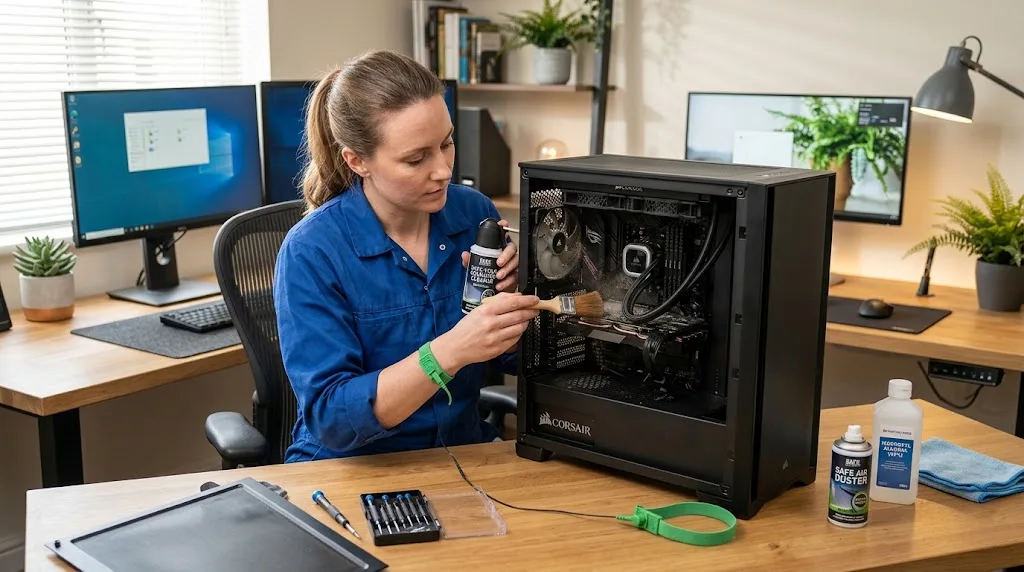
Digital cleanup is only one part of computer maintenance. Dust can collect around vents, fans, keyboards, and ports, potentially reducing airflow and increasing temperatures. Before physically cleaning a computer, shut it down completely, disconnect power, and unplug accessories to reduce the chance of accidental damage.
Use a soft microfiber cloth for external surfaces and avoid spraying liquid directly onto the computer. If needed, lightly dampen the cloth with an appropriate cleaning solution rather than soaking it. Compressed air can help remove loose dust from certain areas, but it should be used carefully and according to the computer manufacturer’s recommendations.
Laptop owners should be particularly careful about opening the device because designs vary considerably. Removing panels incorrectly may damage clips, cables, or components and can affect warranty coverage in some situations. If internal dust buildup is severe or the computer is overheating, professional cleaning may be safer than attempting complicated disassembly without experience.
Create a Regular Computer Cleanup Routine
Waiting until a computer is almost completely full makes cleanup more stressful. A simple monthly review of Downloads, Desktop files, the recycle bin, and installed applications can prevent clutter from becoming overwhelming. Regular maintenance also makes it easier to recognize unusual files or programs because you are more familiar with what normally belongs on the device.
Every few months, review storage usage, startup applications, browser extensions, software updates, and backup status. These tasks do not need to take long when performed consistently. Small maintenance sessions are generally easier than spending an entire day sorting through years of accumulated files and forgotten software.
Your cleanup schedule should match how heavily you use the computer. Someone who downloads large media files or installs many applications may need more frequent maintenance than a light user. The important habit is maintaining enough free storage, keeping software current, protecting important data, and avoiding unnecessary programs that make the system harder to manage.
Conclusion
Cleaning up your computer safely involves more than deleting random files to free storage. A careful approach includes backing up important information, removing known unwanted files, uninstalling unused programs, managing startup applications, organizing large data, and using built-in cleanup tools. These steps can make the computer easier to manage without putting essential system files at unnecessary risk.
Security and software maintenance should also be included in the process. Scanning for malware, updating applications, reviewing browser extensions, and keeping the operating system current can reduce potential problems. Physical cleaning may also support reliable operation by helping vents and external surfaces remain free from excessive dust and debris.
The safest approach is gradual and deliberate. Delete only files and programs you understand, keep important information backed up, and avoid questionable cleanup utilities promising unrealistic performance improvements. Regular maintenance prevents clutter from building up and can help your computer remain organized, secure, and dependable for everyday work.
FAQs
What files are safe to delete when cleaning a computer?
Temporary files, recycle bin contents, old installers, duplicate downloads, and personal files you no longer need are usually reasonable targets. Avoid manually deleting unfamiliar files from Windows, Program Files, or other system directories.
Does cleaning up a computer make it faster?
It can help when low storage, excessive startup programs, unwanted software, or background processes are contributing to poor performance. However, slow performance may also result from hardware limitations, overheating, or other technical issues.
How much free storage should I keep on my computer?
Keeping some unused storage gives the operating system room for updates, temporary files, and everyday tasks. The ideal amount varies by device, but allowing a reasonable buffer is better than keeping the drive almost completely full.
Are computer cleaner apps safe to use?
Some reputable tools are legitimate, but many unnecessary cleaner applications make exaggerated claims. Start with built-in operating system cleanup features and trusted security software before installing third-party utilities.
How often should I clean up my computer?
A light cleanup every month can keep downloads, temporary files, and applications manageable. A more complete review of storage, backups, updates, startup programs, and browser extensions every few months is also useful.